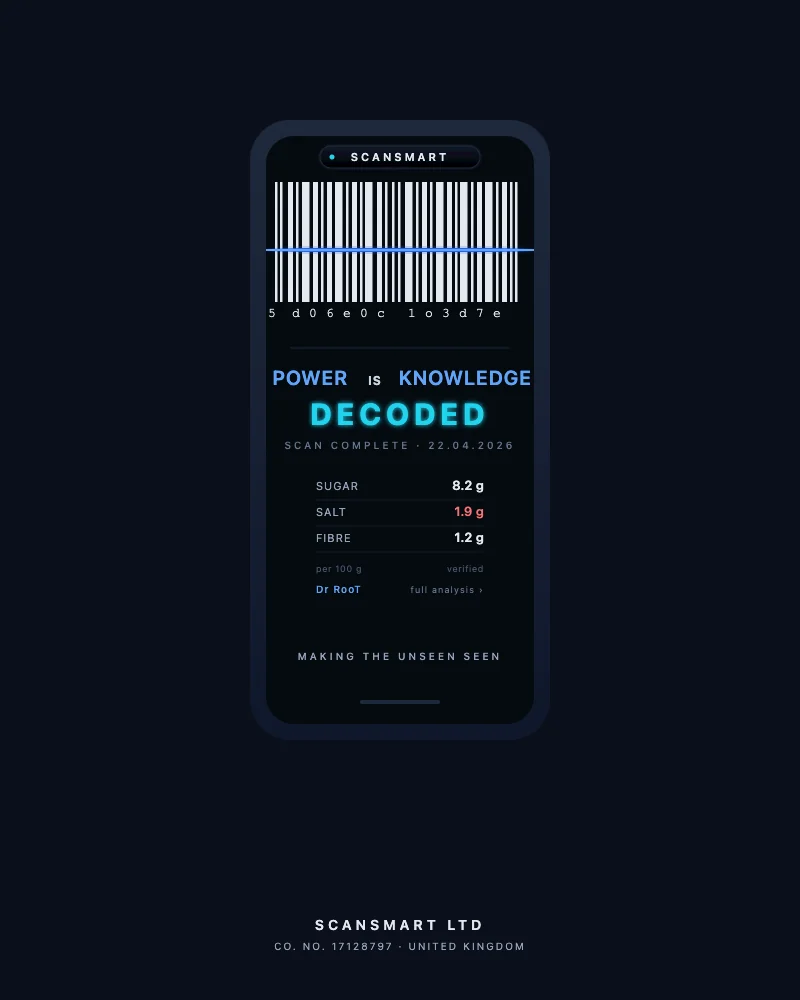
Add SCANSMART to your home screen. Two taps.
SCANSMART runs as an app straight from your phone’s home screen — no app store, no download, no account. CheckIT, the Knowledge Library, and the Weekly Checkout, all one tap from where you already keep your apps. Free. Works offline. No tracking.
Pick your device.
The steps differ slightly by platform. We’ve highlighted the one that matches the device you’re on right now.
iPhone & iPad (Safari)
Share Add to Home Screen Add
Three taps. That’s the whole thing. The detail below is just so you know what each tap looks like.
- Tap “Share” in Safari. The Share sheet slides up from the bottom.
- Scroll down in the Share sheet and tap “Add to Home Screen”. It’s past the row of app icons, in the list of grey options.
- Tap “Add” in the top right. SCANSMART now sits on your home screen like any other app.
Android (Chrome)
Tap green button Install
If the green “Install SCANSMART” button is showing at the top of this page, that’s your one-tap path. Tap it — Chrome opens its own install dialog — tap Install — done.
If the green button didn’t appear:
- Tap the three dots in the top-right corner of Chrome. The menu opens.
- Look for “Install app” or “Add to Home screen”. The wording depends on your Chrome version. Tap it.
- Confirm in the dialog. SCANSMART now lives in your app drawer next to the rest of your apps.
Desktop (Chrome & Edge)
- Look at the address bar at the top of your browser.
- On the right end of the bar, you’ll see an install icon — a small square with a downward arrow. Click it.
- Confirm the install in the dialog.
- SCANSMART will open in its own window and appear in your Applications (Mac) or Start menu (Windows) like any other app.
Why install instead of just visiting?
Straight from your home screen
No address bar to type, no bookmark to dig through. SCANSMART sits next to your other apps. One tap and you’re scanning.
The corner shop has bad signal
The brand chrome and recently-read pages are cached for offline use. The scanner needs a connection to pull the latest verdict, but the rest of the site works without one.
Privacy posture by default
No third-party cookies, no Google Analytics, no behaviour tracking. SCANSMART uses Cloudflare’s privacy-respecting analytics for traffic counts only. The scanner itself records the choice you make at the shelf, not who you are.
Free tier is the literacy backbone
The scanner, the Knowledge Library, the Weekly Checkout, the Shop Directory — all free. Always. Nobody should have to pay for a clear honest read on a product at the point of decision.
Already installed? Try it.
Open the scanner, point it at the back of any food or drink package, and read what’s actually inside.
Open the scanner